Tab icons tutorial
1 Overview
2 Creation of the Application
3 Adding a Menu Factory
4 Create the actions and add them in the menu factory
4.1 Create the action to open a text file
4.2 Create the action to open an image file
4.3 Using these actions in the menu factory
5 Use an icon for the opened tabs
6 Associate types of tabs with icons
6.1 Register the icons in the application
6.2 Use the types in the actions
7 See also
2 Creation of the Application
3 Adding a Menu Factory
4 Create the actions and add them in the menu factory
4.1 Create the action to open a text file
4.2 Create the action to open an image file
4.3 Using these actions in the menu factory
5 Use an icon for the opened tabs
6 Associate types of tabs with icons
6.1 Register the icons in the application
6.2 Use the types in the actions
7 See also
Overview
For this tutorial, we will associate an icon to a tab. This will reuse part of what we have done for the actions tutorial (albeit in this case we won't have plugins).The Application will be able to view:
- Any image files that can be handled by the JRE, and get some properties about these files
- Any text files that can be handled by the JRE, and save the opened files as plain text
- Create an Application and its associated menus
- Use two Actions, one to open an image file, another one to open a text file
- For each of these actions, replace the default method to add a tab by another one which will use an icon depending on the file type
- Then replace this methood of adding tabs by another way where a type of tab is associated with an icon
Creation of the Application
First of all, we must create our Application. Exactly as for the Basic tutorial, we will use:- a logger area at the bottom of the Application Window
- a Status bar under the logger area
- a Menu Bar with our File menu
   import org.mdi.app.swing.AbstractMDIApplication;

   public class TabiconsTutorialMDI extends AbstractMDIApplication {
      public TabiconsTutorialMDI() {
        super("TabiconsTutorialMDI");

        // initialize configuration without Preferences
        this.initConfiguration();

        // create the Application Panels with
        // preparePanels(int messageAreaSize, boolean hasStatusbar, boolean hasToolBar, MDIMenuFactory mfactory)
        // - a Message Area of 4 rows height
        // - a status bar
        // - no tool bar
        // - our Menu Factory
        super.preparePanels(4, true, true, mfactory);

        // set the size of the Application window
        this.setSize(500, 500);
      }

      @Override
      public boolean writeTimeMessages() {
        // we will not allow to write the time of each action on the logger area
        return false;
      }

      public static void main(String[] args) {
        TabiconsTutorialMDI mdi = new TabiconsTutorialMDI();
        mdi.setVisible(true);
      }
   }
Adding a Menu Factory
Our Menu Factory will derive from the AbstractMDIMenuFactory class. We only have to implement the two following abstract methods:- AbstractMDIMenuFactory.initMenus() to create the File menu
- AbstractMDIMenuFactory.createPopupMenu(JPopupMenu menu) to create the Popup menu to close the tabs
Lets create our MenuFactory:
   import javax.swing.JMenu;
   import javax.swing.JMenuItem;
   import javax.swing.JPopupMenu;
   import org.mdi.app.swing.AbstractMDIMenuFactory;

   public class TabiconsMenuFactory extends AbstractMDIMenuFactory {
      private final JMenu filemenu = new JMenu("File");
      private final JMenu openmenu = new JMenu("Open");

      public TabiconsMenuFactory() {
      }

      @Override
      protected void initMenus() {
        // the exit action exists already, we use it
        JMenuItem exitItem = new JMenuItem(getDefaultExitAction());

        // create the menus
        filemenu.add(openmenu);
        filemenu.add(exitItem);

        // create Menu bar
        Mbar.add(filemenu);
        Mbar.add(helpmenu);
      }

      @Override
      public void createPopupMenu(JPopupMenu menu) {
      // there is only a close item for tabs
        JMenuItem close = this.getDefaultCloseItem();
        menu.add(close);
      }
   }
Create the actions and add them in the menu factory
Create the action to open a text file
This action will create aJEditorPane showing the content of a text file opened in the action. The TabbedApplication.addTab(JComponent comp, SwingFileProperties fileProperties) will be used to create a tab with a JScrollPane holding this editor pane:import java.io.File; import java.net.URL; import javax.swing.JEditorPane; import javax.swing.JFileChooser; import javax.swing.JScrollPane; import org.mdi.bootstrap.swing.AbstractMDIAction; import org.mdi.bootstrap.swing.GUIApplication; import org.mdi.bootstrap.swing.SwingFileProperties; import org.mdi.bootstrap.swing.TabbedApplication; public class ImportDocumentAction extends AbstractMDIAction { public ImportDocumentAction(GUIApplication appli, String name) { super(appli, name); this.setDescription("Open Document", "Open Document"); } public void run() throws Exception { TabbedApplication gui = (TabbedApplication) app; JFileChooser chooser = new JFileChooser("Open Document"); chooser.setDialogTitle("Save Document"); chooser.setFileSelectionMode(JFileChooser.FILES_ONLY); if (chooser.showOpenDialog(gui.getApplicationWindow()) == JFileChooser.APPROVE_OPTION) { URL url = chooser.getSelectedFile().toURL(); File file = chooser.getSelectedFile(); // create a JScrollPane to show the text file JEditorPane pane = new JEditorPane(); JScrollPane scroll = new JScrollPane(pane); pane.setPage(url); // add the tab associated with the text file SwingFileProperties prop = new SwingFileProperties(file.getName(), scroll, pane.getDocument()); gui.addTab(pane, prop); } } }
Create the action to open an image file
We will create anImagePanel class to show an image:import java.awt.Dimension; import java.awt.Graphics; import java.awt.Image; import javax.swing.JPanel; public class ImagePanel extends JPanel { private final Image image; public ImagePanel(Image image) { super(); this.image = image; } @Override public void paint(Graphics g) { int width = image.getWidth(this); int height = image.getHeight(this); g.drawImage(image, 0, 0, width, height, this); this.setPreferredSize(new Dimension(width, height)); } }The we will use this image panel in the action to open the image. This action will create an
ImagePanel showing the content of an image file opened in the action. The TabbedApplication.addTab(JComponent comp, SwingFileProperties fileProperties) will be used to create a tab with a JScrollPane holding this image panel:import java.awt.image.BufferedImage; import java.io.File; import javax.imageio.ImageIO; import javax.swing.JFileChooser; import javax.swing.JScrollPane; import org.mdi.bootstrap.MDIApplication; import org.mdi.bootstrap.swing.AbstractMDIAction; import org.mdi.bootstrap.swing.SwingFileProperties; import org.mdi.bootstrap.swing.TabbedApplication; public class ImportImageAction extends AbstractMDIAction { public ImportImageAction(MDIApplication appli, String name) { super(appli, name); this.setDescription("Open Image", "Open Image"); } public void run() throws Exception { TabbedApplication gui = (TabbedApplication) app; JFileChooser chooser = new JFileChooser("Open Image"); chooser.setDialogTitle("Open Image"); chooser.setFileSelectionMode(JFileChooser.FILES_ONLY); if (chooser.showOpenDialog(gui.getApplicationWindow()) == JFileChooser.APPROVE_OPTION) { File file = chooser.getSelectedFile(); BufferedImage image = ImageIO.read(file); if (image == null) { throw new Exception("Bad File type"); } JScrollPane pane = new JScrollPane(new ImagePanel(image)); SwingFileProperties prop = new SwingFileProperties(file.getName(), pane, image); gui.addTab(pane, prop); } } }
Using these actions in the menu factory
We can now use these two actions in the menu factory we just created:import javax.swing.JMenu; import javax.swing.JMenuItem; import javax.swing.JPopupMenu; import org.mdi.app.swing.AbstractMDIMenuFactory; public class TabiconsMenuFactory extends AbstractMDIMenuFactory { private final JMenu filemenu = new JMenu("File"); private final JMenu openmenu = new JMenu("Open"); public TabiconsMenuFactory() { } @Override protected void initMenus() { // the exit action exists already, we use it JMenuItem exitItem = new JMenuItem(getDefaultExitAction()); ImportImageAction importImageAction = new ImportImageAction(this.getApplication(), "Import Image"); openmenu.add(importImageAction); ImportDocumentAction importDocumentAction = new ImportDocumentAction(this.getApplication(), "Import Document"); openmenu.add(importDocumentAction); // create the menus filemenu.add(openmenu); filemenu.add(exitItem); // create Menu bar Mbar.add(filemenu); Mbar.add(openmenu); } @Override public void createPopupMenu(JPopupMenu menu) { // there is only a close item for tabs JMenuItem close = this.getDefaultCloseItem(); menu.add(close); } }The result is:
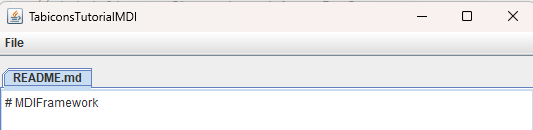
As you see, there is no icon with the opened tabs.
Use an icon for the opened tabs
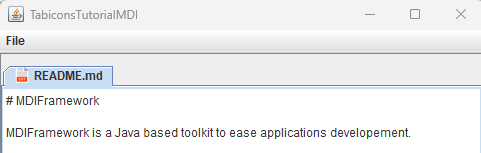
We will update the actions to show icons with the opened tabs. To be able to do that, we will use the TabbedApplication.addTab(JComponent comp, Icon icon, SwingFileProperties fileProperties) method for both the actions.For example for the
ImportDocumentAction action:import java.io.File; import java.net.URL; import javax.swing.JEditorPane; import javax.swing.JFileChooser; import javax.swing.JScrollPane; import org.mdi.bootstrap.swing.AbstractMDIAction; import org.mdi.bootstrap.swing.GUIApplication; import org.mdi.bootstrap.swing.SwingFileProperties; import org.mdi.bootstrap.swing.TabbedApplication; import javax.swing.ImageIcon; public class ImportDocumentAction extends AbstractMDIAction { public ImportDocumentAction(GUIApplication appli, String name) { super(appli, name); this.setDescription("Open Document", "Open Document"); } public void run() throws Exception { TabbedApplication gui = (TabbedApplication) app; JFileChooser chooser = new JFileChooser("Open Document"); chooser.setDialogTitle("Save Document"); chooser.setFileSelectionMode(JFileChooser.FILES_ONLY); if (chooser.showOpenDialog(gui.getApplicationWindow()) == JFileChooser.APPROVE_OPTION) { URL url = chooser.getSelectedFile().toURL(); File file = chooser.getSelectedFile(); // create a JScrollPane to show the text file JEditorPane pane = new JEditorPane(); JScrollPane scroll = new JScrollPane(pane); pane.setPage(url); // add the tab associated with the text file SwingFileProperties prop = new SwingFileProperties(file.getName(), scroll, pane.getDocument()); url = TabiconsTutorialMDI.class.getResource("texticon.png"); gui.addTab(pane, new ImageIcon(url), prop); } } }We now have the following result when we open a tab:
Associate types of tabs with icons
Main Article: Associate types of tabs with icons
We will now associate types of tabs at the GUI application level and just specify the type in the action.
Register the icons in the application
In the GUI application, we will associate types with their associated icon:public class TabiconsTutorialMDI extends AbstractMDIApplication { public TabiconsTutorialMDI() { super("TabiconsTutorialMDI"); // initialize configuration without Preferences this.initConfiguration(); // associate types with icons getTabTypeManager(); // here the type manager is created URL url = TabiconsTutorialMDI.class.getResource("pngicon.png"); tabTypeManager.registerIcon(url, "image"); url = TabiconsTutorialMDI.class.getResource("texticon.png"); tabTypeManager.registerIcon(url, "text"); // create the menus with the Application menu factory mfactory = new TabiconsMenuFactory(); super.preparePanels(4, true, true, mfactory); // set the size of the Application window this.setSize(500, 500); } @Override public boolean writeTimeMessages() { return false; } public static void main(String[] args) { TabiconsTutorialMDI mdi = new TabiconsTutorialMDI(); mdi.setVisible(true); } }
Use the types in the actions
We will now use the types we have registered in the actions. For example:public class ImportDocumentAction extends AbstractMDIAction { public ImportDocumentAction(GUIApplication appli, String name) { super(appli, name); this.setDescription("Open Document", "Open Document"); } public void run() throws Exception { TabbedApplication gui = (TabbedApplication) app; JFileChooser chooser = new JFileChooser("Open Document"); chooser.setDialogTitle("Save Document"); chooser.setFileSelectionMode(JFileChooser.FILES_ONLY); if (chooser.showOpenDialog(gui.getApplicationWindow()) == JFileChooser.APPROVE_OPTION) { URL url = chooser.getSelectedFile().toURL(); File file = chooser.getSelectedFile(); JEditorPane pane = new JEditorPane(); JScrollPane scroll = new JScrollPane(pane); pane.setPage(url); SwingFileProperties prop = new SwingFileProperties(file.getName(), scroll, pane.getDocument()); prop.setType("text"); gui.addTab(pane, prop); } } }
See also
- Tutorials: This article is the index of the tutorials
- Basic tutorial: A basic tutorial
- Actions tutorial: The actions tutorial
Categories: Swing | Tutorials
