Named configuration tutorial
1 Overview
2 Creation the application
2.1 Adding a menu factory
3 Adding the plugins management
3.1 Add the Plugins settings menu in the menu factory
4 Create the first Plugin
4.1 Code the panel to show the image
4.2 Define the Plugin manifest
4.3 Code the Plugin main class
5 Create the second Plugin
5.1 Code the panel to show the image
5.2 Define the Plugin manifest
5.3 Code the Plugin main class
6 Define the named configuration
7 Define the first Plugin configuration
8 Define the second Plugin configuration
9 Update the Plugins to handle the configurations
9.1 Update the first Plugin
9.2 Update the first Plugin image panel
9.3 Update the second Plugin
9.4 Update the second Plugin image panel
10 Update the Plugins to manage the settings
10.1 Handle the settings for the first Plugin
10.2 Handle the settings for the second Plugin
11 Final result
12 See also
2 Creation the application
2.1 Adding a menu factory
3 Adding the plugins management
3.1 Add the Plugins settings menu in the menu factory
4 Create the first Plugin
4.1 Code the panel to show the image
4.2 Define the Plugin manifest
4.3 Code the Plugin main class
5 Create the second Plugin
5.1 Code the panel to show the image
5.2 Define the Plugin manifest
5.3 Code the Plugin main class
6 Define the named configuration
7 Define the first Plugin configuration
8 Define the second Plugin configuration
9 Update the Plugins to handle the configurations
9.1 Update the first Plugin
9.2 Update the first Plugin image panel
9.3 Update the second Plugin
9.4 Update the second Plugin image panel
10 Update the Plugins to manage the settings
10.1 Handle the settings for the first Plugin
10.2 Handle the settings for the second Plugin
11 Final result
12 See also
This tutorial explains how to use a named configurations for plugins.
For the first plugin:
Overview
For this tutorial, we will define two plugins which will share one named configuration.- The function of the first Plugin will be to open a PNG image
- The function of the second Plugin will be to open a JPEG image
- An int value which will specify the maximum width of the image to show
- A boolean value specifying if the image width should be limited to the maximum width
Creation the application
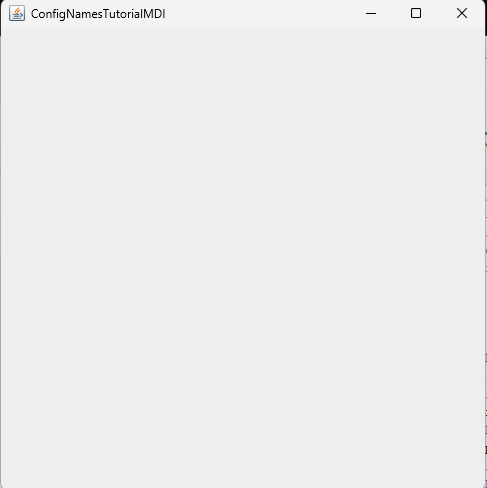
We create the GUI application:public class ConfigNamesTutorialMDI extends AbstractMDIApplication { public ConfigNamesTutorialMDI() { super(); this.setSize(500, 500); } public static void main(String[] args) { ConfigNamesTutorialMDI mdi = new ConfigNamesTutorialMDI(); mdi.setVisible(true); } }We have the following image when we start the applcation:
Adding a menu factory
We add a Menu factory to the application. We will:- Add an "Open" Menu
- Add a settings Menu
- Add a Close item to the application tabs
   public class SimpleMenuFactory extends AbstractMDIMenuFactory {
      private final JMenu filemenu = new JMenu("File");
      private final JMenu openmenu = new JMenu("Open");
      private final JMenu settingsmenu = new JMenu("Tools");

      public SimpleMenuFactory() {
      }

      @Override
      protected void initMenus() {
        JMenuItem exitItem = new JMenuItem(getDefaultExitAction());

        staticMenuKeyMap.put(PluginElementTypes.OPEN_ACTIONS, openmenu);
        staticMenuKeyMap.put(PluginElementTypes.SETTINGS_MENU, settingsmenu);
        settingsmenu.add(this.createSettingsMenuItem("Settings"));

        registerMenus();
        progress.setProgress(progress.getProgress() + 20, "Register Plugins Menus");

        filemenu.add(openmenu);
        filemenu.add(exitItem);

        Mbar.add(filemenu);
        Mbar.add(settingsmenu);
      }

      @Override
      public void createPopupMenu(JPopupMenu menu) {
        JMenuItem close = this.getDefaultCloseItem();
        menu.add(close);
      }
   }
Now we can use this menu factory in our application:
   public class ConfigNamesTutorialMDI extends AbstractMDIApplication {
      public ConfigNamesTutorialMDI() {
        super();

        mfactory = new SimpleMenuFactory();
        super.preparePanels(4, true, true, mfactory);
        this.setSize(500, 500);
      }

      public static void main(String[] args) {
        ConfigNamesTutorialMDI mdi = new ConfigNamesTutorialMDI();
        mdi.setVisible(true);
      }
   }
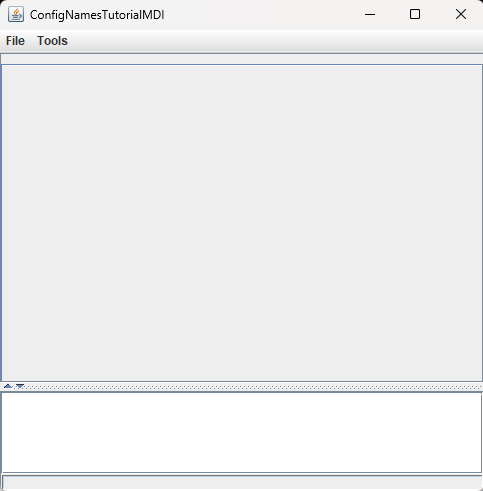
We have the following image when we start the application:
Adding the plugins management
We will add our two plugins to the GUI application. We will first update the application and factory code to:- Manage plugins in the application
- Include the plugins settings in the Menu factory
- Manage the configuration for the Plugins
   public class ConfigNamesTutorialMDI extends AbstractMDIApplication {
      public ConfigNamesTutorialMDI() {
        super();
        ImageIcon splash = new ImageIcon(this.getClass().getResource("splash.png"));
        SplashScreen splashdialog = new SplashScreen(splash, getApplicationDesc(), true);

        pluginsDir = new File(System.getProperty("user.dir"));
        this.setPluginsConfiguration(pluginsDir);

        Preferences pref = Preferences.userRoot();
        this.initConfiguration(pref, null);
        splashdialog.setProgress(splashdialog.getProgress() + 20, "Register Plugins");
        this.registerPlugins();

        this.setSize(500, 500);
        splashdialog.dispose();
      }

      public static void main(String[] args) {
        ConfigNamesTutorialMDI mdi = new ConfigNamesTutorialMDI();
        mdi.setVisible(true);
      }
   }
Add the Plugins settings menu in the menu factory
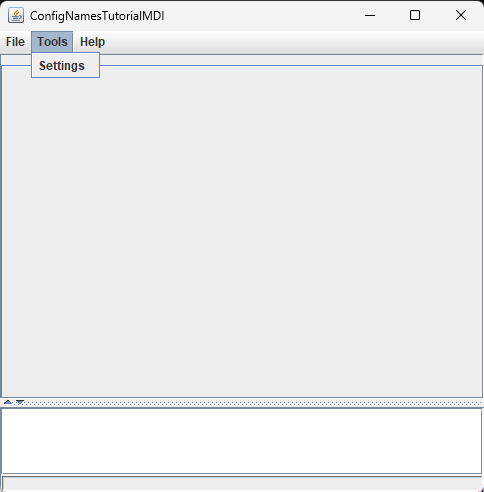
We will add the settings menu in the Menu factory:public class SimpleMenuFactory extends AbstractMDIMenuFactory { private final JMenu filemenu = new JMenu("File"); private final JMenu openmenu = new JMenu("Open"); private final JMenu settingsmenu = new JMenu("Tools"); private final JMenu helpmenu = new JMenu("Help"); public SimpleMenuFactory() { } @Override protected void initMenus() { JMenuItem exitItem = new JMenuItem(getDefaultExitAction()); staticMenuKeyMap.put(PluginElementTypes.OPEN_ACTIONS, openmenu); staticMenuKeyMap.put(PluginElementTypes.SETTINGS_MENU, settingsmenu); settingsmenu.add(this.createSettingsMenuItem("Settings")); registerMenus(); progress.setProgress(progress.getProgress() + 20, "Register Plugins Menus"); JMenuItem aboutPluginsItem = new JMenuItem(getPluginsMenuFactory().getAboutPluginsAction()); helpmenu.add(aboutPluginsItem); filemenu.add(openmenu); filemenu.add(exitItem); Mbar.add(filemenu); Mbar.add(settingsmenu); Mbar.add(helpmenu); } @Override public void createPopupMenu(JPopupMenu menu) { JMenuItem close = this.getDefaultCloseItem(); menu.add(close); } }We have the following image when we start the application:
Create the first Plugin
The function of the first Plugin will be to open a PNG image.Code the panel to show the image
We will first code the panel which will show the image. This code has for the moment no dependency to the framework:public class PNGImagePanel extends JPanel { private final Image image; public PNGImagePanel(Image image) { super(); this.image = image; } @Override public void paint(Graphics g) { int width = image.getWidth(this); int height = image.getHeight(this); g.drawImage(image, 0, 0, width, height, this); this.setPreferredSize(new Dimension(width, height)); } }
Define the Plugin manifest
We will first define the Plugin Manifest:
MDIPluginClass: org.confignamestutorial.plugins.plugin1.OpenPNGImagePlugin
Code the Plugin main class
   public class OpenPNGImagePlugin extends AbstractMDIPlugin {
      private AbstractAction importImageAction;

      public OpenPNGImagePlugin() {
      }

      @Override
      public void register(MDIApplication app) throws Exception {
        super.register(app);
        importImageAction = new ImportImageAction("PNG Image");
      }

      @Override
      public Object getStaticMenuElements(String menu) {
        switch (menu) {
          case PluginElementTypes.OPEN_ACTIONS:
            return importImageAction;
          default:
            return null;
        }
      }

      protected class ImportImageAction extends AbstractMDIAction {
        public ImportImageAction(String name) {
          super(appli, name);
          this.setDescription("Open PNG Image", "Open PNG Image");
        }

        @Override
        public void run() throws Exception {
           TabbedApplication gui = (TabbedApplication) app;
           JFileChooser chooser = new JFileChooser("Open PNG Image");
           chooser.setDialogTitle("Open Image");
           chooser.setCurrentDirectory(conf.lastDir);
           chooser.setFileFilter(new FileFilter() {
              @Override
              public boolean accept(File f) {
                  String name = f.getName().toLowerCase();
                  return f.isDirectory() || name.endsWith(".png");
              }
              @Override
              public String getDescription() {
                  return "PNG Files";
              }
           });
           chooser.setFileSelectionMode(JFileChooser.FILES_ONLY);
           if (chooser.showOpenDialog(gui.getApplicationWindow()) == JFileChooser.APPROVE_OPTION) {
              File file = chooser.getSelectedFile();
              BufferedImage image = ImageIO.read(file);
              if (image == null) {
                throw new Exception("Bad File type");
              }
              JScrollPane pane = new JScrollPane(new PNGImagePanel(image));
              gui.addTab(pane, image, file.getName());
            }
        }
      }
   }
Create the second Plugin
The function of the first Plugin will be to open a JPEG image. The code willl be very simlar to the first one.Code the panel to show the image
We will first code the panel which will show the image. The code is exactly the same as the one we did for the first Plugin:public class JPGImagePanel extends JPanel { private final Image image; public JPGImagePanel(Image image) { super(); this.image = image; } @Override public void paint(Graphics g) { int width = image.getWidth(this); int height = image.getHeight(this); g.drawImage(image, 0, 0, width, height, this); this.setPreferredSize(new Dimension(width, height)); } }
Define the Plugin manifest
We will first define the Plugin Manifest:
MDIPluginClass: org.confignamestutorial.plugins.plugin2.OpenJPGImagePlugin
Code the Plugin main class
The code is very similar as the one we did for the first Plugin:public class OpenJPGImagePlugin extends AbstractMDIPlugin { private AbstractAction importImageAction; public OpenJPGImagePlugin() { } @Override public void register(MDIApplication app) throws Exception { super.register(app); importImageAction = new ImportImageAction("JPEG Image"); } @Override public Object getStaticMenuElements(String menu) { switch (menu) { case PluginElementTypes.OPEN_ACTIONS: return importImageAction; default: return null; } } protected class ImportImageAction extends AbstractMDIAction { public ImportImageAction(String name) { super(appli, name); this.setDescription("Open JPEG Image", "Open JPEG Image"); } @Override public void run() throws Exception { TabbedApplication gui = (TabbedApplication) app; JFileChooser chooser = new JFileChooser("Open JPEG Image"); chooser.setDialogTitle("Open Image"); chooser.setCurrentDirectory(conf.lastDir); chooser.setFileFilter(new FileFilter() { @Override public boolean accept(File f) { String name = f.getName().toLowerCase(); return f.isDirectory() || name.endsWith(".jpg") || name.endsWith(".jpeg"); } @Override public String getDescription() { return "JPEG Files"; } }); chooser.setFileSelectionMode(JFileChooser.FILES_ONLY); if (chooser.showOpenDialog(gui.getApplicationWindow()) == JFileChooser.APPROVE_OPTION) { File file = chooser.getSelectedFile(); BufferedImage image = ImageIO.read(file); if (image == null) { throw new Exception("Bad File type"); } JScrollPane pane = new JScrollPane(new PNGImagePanel(image)); gui.addTab(pane, image, file.getName()); } } } }
Define the named configuration
We will share a configuration for themaxWidth and limitWidth properties for the two Plugins. Let's update our two Manifests.For the first plugin:
   MDIPluginClass: org.confignamestutorial.plugins.plugin1.OpenPNGImagePlugin
   MDIPluginConfig: imageConfig
For the second plugin:
   MDIPluginClass: org.confignamestutorial.plugins.plugin2.OpenJPGImagePlugin
   MDIPluginConfig: imageConfig
Define the first Plugin configuration
We will code our first Plugin configuration using thisimageConfig named configuration. We will use a ConfigPropertiesHelper instance to simplify our handling of properties:public class OpenPNGImagePluginConfiguration implements Configuration { private static OpenPNGImagePluginConfiguration conf = null; private final ConfigPropertiesHelper helper = new ConfigPropertiesHelper(); private OpenPNGImagePluginConfiguration() { ConfigPropertiesHelper.ConfigSet set = helper.createConfiguration("imageConfig"); set.addIntProperty("maxWidth").setValue(1000); set.addBooleanProperty("limitWidth"); } public static OpenPNGImagePluginConfiguration getInstance() { if (conf == null) { conf = new OpenPNGImagePluginConfiguration(); } return conf; } @Override public Set<String> getConfigurationPropertiesNames(String confName) { return helper.getConfigurationPropertiesNames(confName); } @Override public boolean hasConfigurationProperty(String propertyName, String confName) { return helper.hasConfigurationProperty(propertyName, confName); } @Override public Object getConfigurationProperty(File dir, String propertyName, String confName) { return helper.getConfigurationProperty(dir, propertyName, confName); } @Override public Class getConfigurationPropertyType(String propertyName, String confName) { return helper.getConfigurationPropertyType(propertyName, confName); } @Override public void setConfigurationProperty(File dir, String propertyName, String confName, Object property) { helper.setConfigurationProperty(dir, propertyName, confName, property); } }
Define the second Plugin configuration
We will code our second Plugin configuration using thisimageConfig named configuration. The code is exactly the same as for the first Plugin. public class OpenJPGImagePluginConfiguration implements Configuration { private static OpenJPGImagePluginConfiguration conf = null; private final ConfigPropertiesHelper helper = new ConfigPropertiesHelper(); private OpenJPGImagePluginConfiguration() { ConfigPropertiesHelper.ConfigSet set = helper.createConfiguration("imageConfig"); set.addIntProperty("maxWidth").setValue(1000); set.addBooleanProperty("limitWidth"); } public static OpenJPGImagePluginConfiguration getInstance() { if (conf == null) { conf = new OpenJPGImagePluginConfiguration(); } return conf; } @Override public Set<String> getConfigurationPropertiesNames(String confName) { return helper.getConfigurationPropertiesNames(confName); } @Override public boolean hasConfigurationProperty(String propertyName, String confName) { return helper.hasConfigurationProperty(propertyName, confName); } @Override public Object getConfigurationProperty(File dir, String propertyName, String confName) { return helper.getConfigurationProperty(dir, propertyName, confName); } @Override public Class getConfigurationPropertyType(String propertyName, String confName) { return helper.getConfigurationPropertyType(propertyName, confName); } @Override public void setConfigurationProperty(File dir, String propertyName, String confName, Object property) { helper.setConfigurationProperty(dir, propertyName, confName, property); } }
Update the Plugins to handle the configurations
Update the first Plugin
We will now use the configuration in our first Plugin:public class OpenPNGImagePlugin extends AbstractMDIPlugin { private AbstractAction importImageAction; private final OpenPNGImagePluginConfiguration pluginConf = OpenPNGImagePluginConfiguration.getInstance(); public OpenPNGImagePlugin() { } @Override public void register(MDIApplication app) throws Exception { super.register(app); importImageAction = new ImportImageAction("PNG Image"); } @Override public Object getStaticMenuElements(String menu) { switch (menu) { case PluginElementTypes.OPEN_ACTIONS: return importImageAction; default: return null; } } @Override public Configuration getPluginConfiguration() { return pluginConf; } protected class ImportImageAction extends AbstractMDIAction { public ImportImageAction(String name) { super(appli, name); this.setDescription("Open PNG Image", "Open PNG Image"); } @Override public void run() throws Exception { TabbedApplication gui = (TabbedApplication) app; JFileChooser chooser = new JFileChooser("Open PNG Image"); chooser.setDialogTitle("Open Image"); chooser.setFileFilter(new FileFilter() { @Override public boolean accept(File f) { String name = f.getName().toLowerCase(); return f.isDirectory() || name.endsWith(".png"); } @Override public String getDescription() { return "PNG Files"; } }); chooser.setFileSelectionMode(JFileChooser.FILES_ONLY); if (chooser.showOpenDialog(gui.getApplicationWindow()) == JFileChooser.APPROVE_OPTION) { File file = chooser.getSelectedFile(); BufferedImage image = ImageIO.read(file); if (image == null) { throw new Exception("Bad File type"); } JScrollPane pane = new JScrollPane(new PNGImagePanel(image)); gui.addTab(pane, image, file.getName()); } } } }
Update the first Plugin image panel
We can now use the named configuration in the panel:public class PNGImagePanel extends JPanel { private final Image image; public PNGImagePanel(Image image) { super(); this.image = image; } @Override public void paint(Graphics g) { int width = image.getWidth(this); int height = image.getHeight(this); OpenPNGImagePluginConfiguration conf = OpenPNGImagePluginConfiguration.getInstance(); int maxWidth = (Integer)conf.getConfigurationProperty(null, "maxWidth", "imageConfig"); boolean limitWidth = (Boolean)conf.getConfigurationProperty(null, "limitWidth", "imageConfig"); if (limitWidth && width > maxWidth) { height = (int) ((float) height / (float) width * (float) maxWidth); width = maxWidth; } g.drawImage(image, 0, 0, width, height, this); this.setPreferredSize(new Dimension(width, height)); } }
Update the second Plugin
We will now use the configuration in our second Plugin. The coder is very similar to the first:public class OpenJPGImagePlugin extends AbstractMDIPlugin { private AbstractAction importImageAction; private final OpenJPGImagePluginConfiguration pluginConf = OpenJPGImagePluginConfiguration.getInstance(); public OpenJPGImagePlugin() { } @Override public void register(MDIApplication app) throws Exception { super.register(app); importImageAction = new ImportImageAction("JPEG Image"); } @Override public Object getStaticMenuElements(String menu) { switch (menu) { case PluginElementTypes.OPEN_ACTIONS: return importImageAction; default: return null; } } @Override public Configuration getPluginConfiguration() { return pluginConf; } protected class ImportImageAction extends AbstractMDIAction { public ImportImageAction(String name) { super(appli, name); this.setDescription("Open JPEG Image", "Open JPEG Image"); } @Override public void run() throws Exception { TabbedApplication gui = (TabbedApplication) app; JFileChooser chooser = new JFileChooser("Open JPEG Image"); chooser.setDialogTitle("Open Image"); chooser.setFileFilter(new FileFilter() { @Override public boolean accept(File f) { String name = f.getName().toLowerCase(); return f.isDirectory() || name.endsWith(".jpg") || name.endsWith(".jpeg"); } @Override public String getDescription() { return "JPEG Files"; } }); chooser.setFileSelectionMode(JFileChooser.FILES_ONLY); if (chooser.showOpenDialog(gui.getApplicationWindow()) == JFileChooser.APPROVE_OPTION) { File file = chooser.getSelectedFile(); BufferedImage image = ImageIO.read(file); if (image == null) { throw new Exception("Bad File type"); } JScrollPane pane = new JScrollPane(new JPEGImagePanel(image)); gui.addTab(pane, image, file.getName()); } } } }
Update the second Plugin image panel
We can now use the named configuration in the panel:public class JPGImagePanel extends JPanel { private final Image image; public JPGImagePanel(Image image) { super(); this.image = image; } @Override public void paint(Graphics g) { int width = image.getWidth(this); int height = image.getHeight(this); OpenPNGImagePluginConfiguration conf = OpenPNGImagePluginConfiguration.getInstance(); int maxWidth = (Integer)conf.getConfigurationProperty(null, "maxWidth", "imageConfig"); boolean limitWidth = (Boolean)conf.getConfigurationProperty(null, "limitWidth", "imageConfig"); if (limitWidth && width > maxWidth) { height = (int) ((float) height / (float) width * (float) maxWidth); width = maxWidth; } g.drawImage(image, 0, 0, width, height, this); this.setPreferredSize(new Dimension(width, height)); } }
Update the Plugins to manage the settings
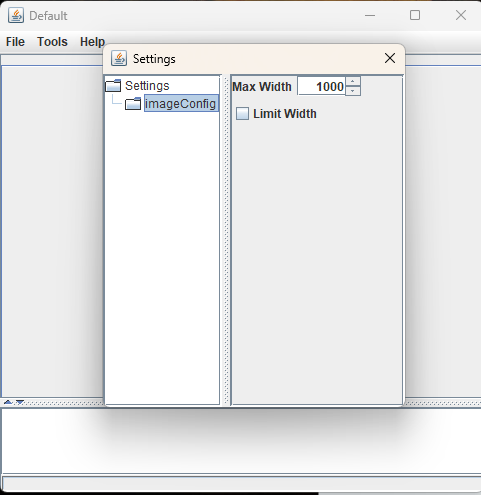
We will now handle the settings for both the Plugins.Handle the settings for the first Plugin
   public class OpenPNGImagePlugin extends AbstractMDIPlugin {
      private AbstractAction importImageAction;
      private final SpinnerNumberModel maxWidthModel = new SpinnerNumberModel(1000, 10, 1000, 10);
      private JSpinner maxWidthSpinner;
      private final JCheckBox limitWidthCb = new JCheckBox("Limit Width");
      private JPanel confPanel = null;
      private final OpenPNGImagePluginConfiguration pluginConf = OpenPNGImagePluginConfiguration.getInstance();

      public OpenPNGImagePlugin() {
      }

      @Override
      public void register(MDIApplication app) throws Exception {
        super.register(app);
           importImageAction = new ImportImageAction("PNG Image");
           maxWidthSpinner = new JSpinner(maxWidthModel);
           maxWidthSpinner.setEditor(new JSpinner.NumberEditor(maxWidthSpinner, "####"));
           maxWidthSpinner.setMaximumSize(maxWidthSpinner.getPreferredSize());
           maxWidthSpinner.setValue(app.getConfigurationPropertyValue("imageConfig", "maxWidth"));
           maxWidthSpinner.addChangeListener((ChangeEvent e) -> {
             try {
               int value = ((Integer) ((JSpinner) e.getSource()).getValue());
               if (value < 10) {
                 value = 10;
               } else if (value > 1000) {
                 value = 1000;
               }
               appli.setConfigurationPropertyValue("imageConfig", "maxWidth", value);
             } catch (ArithmeticException ex) {
             }
           });
           limitWidthCb.setSelected((Boolean)app.getConfigurationPropertyValue("imageConfig", "limitWidth"));
           limitWidthCb.addActionListener(new ActionListener() {
             @Override
             public void actionPerformed(ActionEvent e) {
               appli.setConfigurationPropertyValue("imageConfig", "limitWidth", limitWidthCb.isSelected());
             }
           });
           confPanel = new JPanel();
           confPanel.setLayout(new BoxLayout(confPanel, BoxLayout.Y_AXIS));
           JPanel hpanel = new JPanel();
           hpanel.setLayout(new BoxLayout(hpanel, BoxLayout.X_AXIS));
           hpanel.add(new JLabel("Max Width"));
           hpanel.add(Box.createRigidArea(new Dimension(5, 0)));
           hpanel.add(maxWidthSpinner);
           hpanel.add(Box.createHorizontalGlue());
           confPanel.add(hpanel);
           confPanel.add(Box.createVerticalStrut(5));
           hpanel = new JPanel();
           hpanel.setLayout(new BoxLayout(hpanel, BoxLayout.X_AXIS));
           hpanel.add(limitWidthCb);
           hpanel.add(Box.createHorizontalGlue());
           confPanel.add(hpanel);
           confPanel.add(Box.createVerticalGlue());
      }

      @Override
      public Object getStaticMenuElements(String menu) {
        switch (menu) {
          case PluginElementTypes.OPEN_ACTIONS:
            return importImageAction;
          default:
            return null;
        }
      }

         @Override
         public Object getSettingsMenuElements(String configName) {
           if (configName.equals("imageConfig")) {
             return confPanel;
           } else {
             return null;
           }
         }

      @Override
      public Configuration getPluginConfiguration() {
        return pluginConf;
      }
   }
Handle the settings for the second Plugin
The code is pretty similar than for the first Plugin.Final result
See also
- Tutorials: This article is the index of the tutorials
- Named configurations: This article is about the Plugins named configurations
- named configurations: This article is about the Plugins configuration
Categories: Swing | Tutorials
